

Corporate Life
Gameplay mod · The Sims 4
Build the career. Navigate the people.
Base game · No other mods required · Script mod
You’ll sign in with Patreon. If you’re on the Early Birds tier, the download starts right away.
Corporate Life turns a lot into a working company. Play the CEO who runs it, or any of the people who work there. Each role has its own day, its own goals and its own part in how the company does. The company, its people and its money are kept every time you save, in the save where you founded it.
Step by step
Getting started
Every save starts with the CEO: without one there is no company, and nobody can work there. Whoever you plan to play, found the company first. It takes a minute. Getting the office ready is what makes the first day run smoothly.
Found the company
Mark the office lot
The office has to be a Generic Lot: a home can't host a company. In Manage Worlds, or in Build mode on the lot itself, set its type to Generic Lot. Then open its Lot Traits and add Corporate Office. Every lot you mark this way appears in your list of properties.
Register the headquarters
On a computer, choose Corporate LifeRegister Corporate HQ. Browse Available Properties lists the lots you marked: pick one and confirm. If your Sim is already on the lot, Register This Location sets it up right there and adds the trait for you. Then name the company, give it a tagline and pay the registration fee. Your Sim becomes the CEO.
Hire a first team
Right after, Your First Team helps you hire the core team: Marketing, Sales and Reception. The office can’t open until at least one person is on the payroll, and two to four is a good start. Later, hire from IntranetHRHiring, or click any Sim and choose Corporate LifeOffer Job.
Tag the furniture
Click a table or desk and choose Set Office Surface TypeSet Office Zone…, then the type. The Meeting Table must be a table or a desk, never a counter or a bar. Doors have their own menu: click a door and choose Corporate LifeOffice Door Type. Start with the Front Door. See Office setup.
Give everyone a computer
Click the computer, choose Corporate LifeAssign Workstation and pick the person. An assigned computer works only for its owner, so give the CEO one too.
Add the finishing touches
Place a Corporate Strategy Whiteboard, which the checklist counts as essential. Then put at least four chairs around the Meeting Table and a chair near the Reception Desk for visitors.
Run the checklist
IntranetOperationsSetup Checklist tells you what is still missing and what is only recommended. Run it on the office lot.
Join as an employee
Every role needs a company, so found it with a CEO first. Then:
- Get your Sim a job: offer one to a Sim you play, or use Browse Job Board on a computer.
- If they applied, Attend Job Interview appears on their phone. The answer comes when they’re back.
- Switch to them.
The company’s first team starts work straight away. The first day is for people who join once the office has been running.
Every role
The work week
The whole office works on the same week, and each person has their own part in it. Your Sim’s goals come from their job, while the rest of the team does theirs around them. The office runs from 9 AM to 5 PM, Monday to Friday. It opens by itself when the Sim you play is at the office during those hours, as long as someone has been hired. The hours don’t change: the stories are built around this week.
A day at the office
- Before work
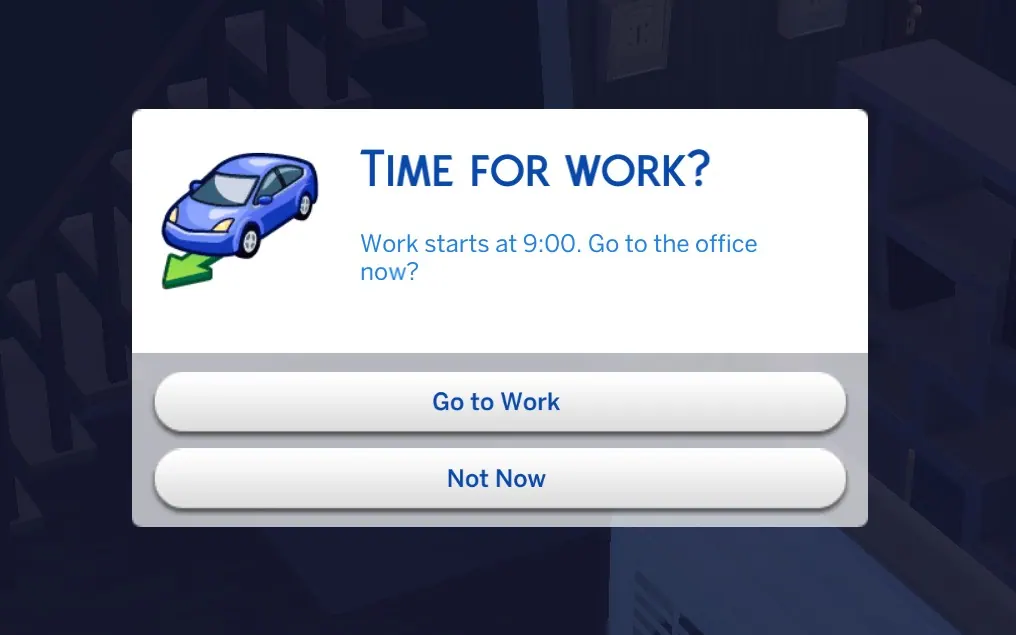
At opening time, if your Sim is somewhere else, Time for work? asks whether to go now. Go to Work takes them to the office, and Not Now leaves it for later.
- Arrival
The team comes in and settles at their desks. Arriving late shows up as Running Late.
- The day’s work
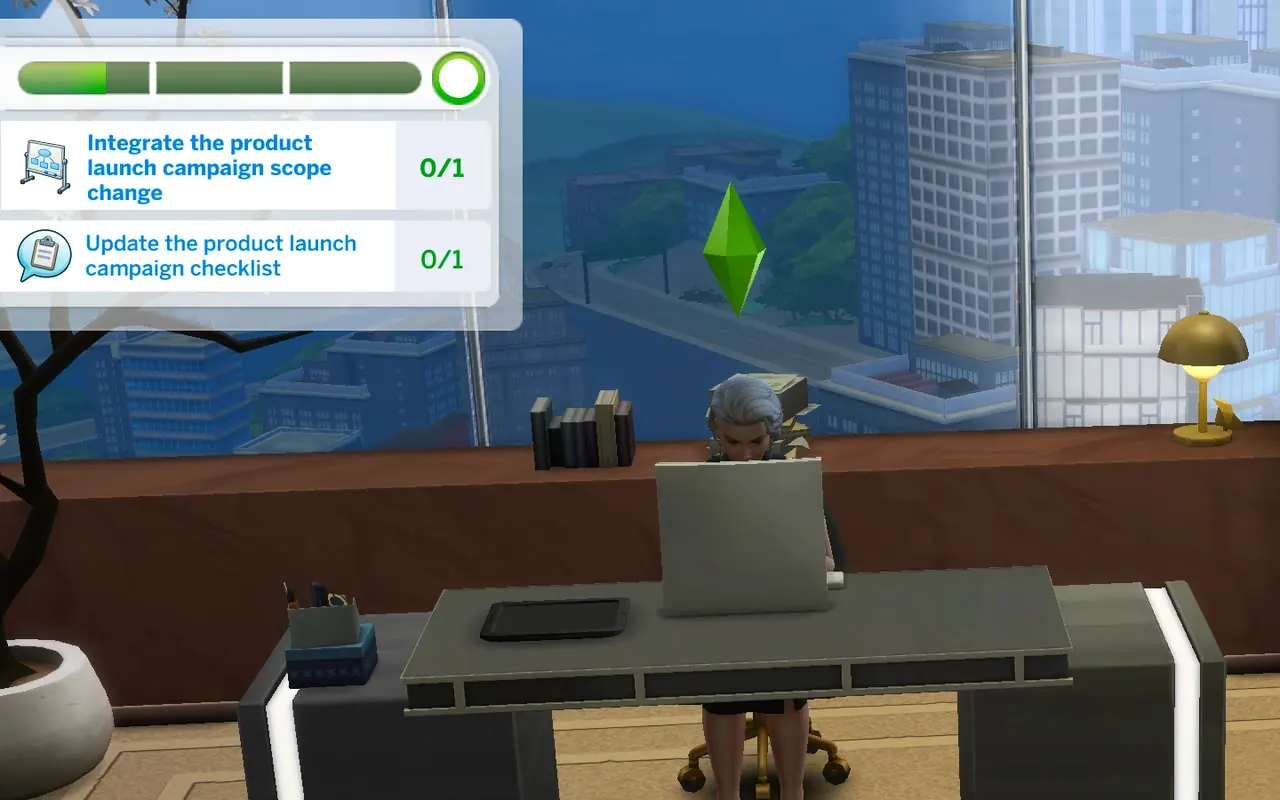
The Office Day panel gives your Sim one main goal and a few smaller ones. Around them: team meetings, calls, visitors and conversations with colleagues. When someone asks for your help, you can start now or later.
- Closing
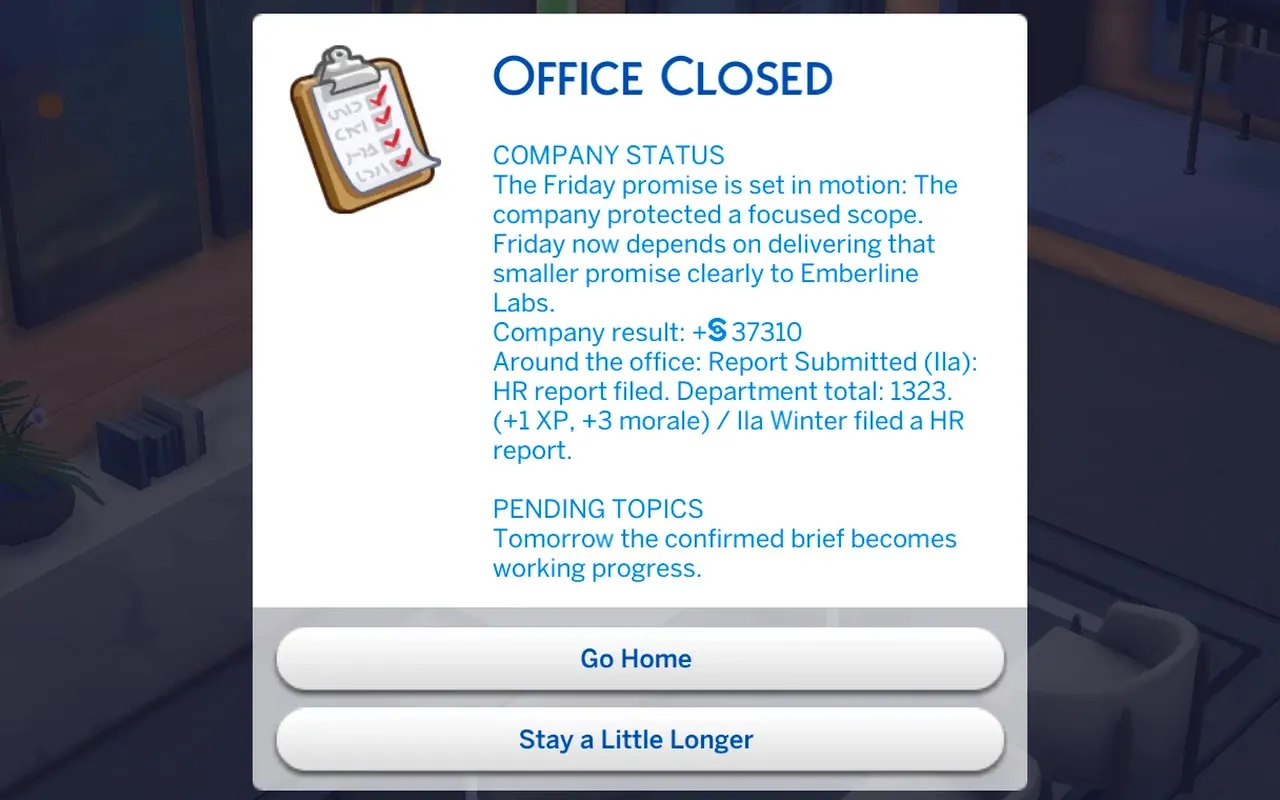
A short report says what changed and what your Sim contributed. Choose Go Home, or Stay a Little Longer for one more hour. Everyone is paid at closing, as long as the company has the money. If it doesn’t, payroll is late and the team notices.
Day after day. Morale, stress and relationships carry over from one day to the next, so a hard week shows. To end a day early, the CEO uses IntranetOperationsClose Office, and HR can click an office door and choose Corporate LifeOffice Door TypeClose Office.
How a week runs
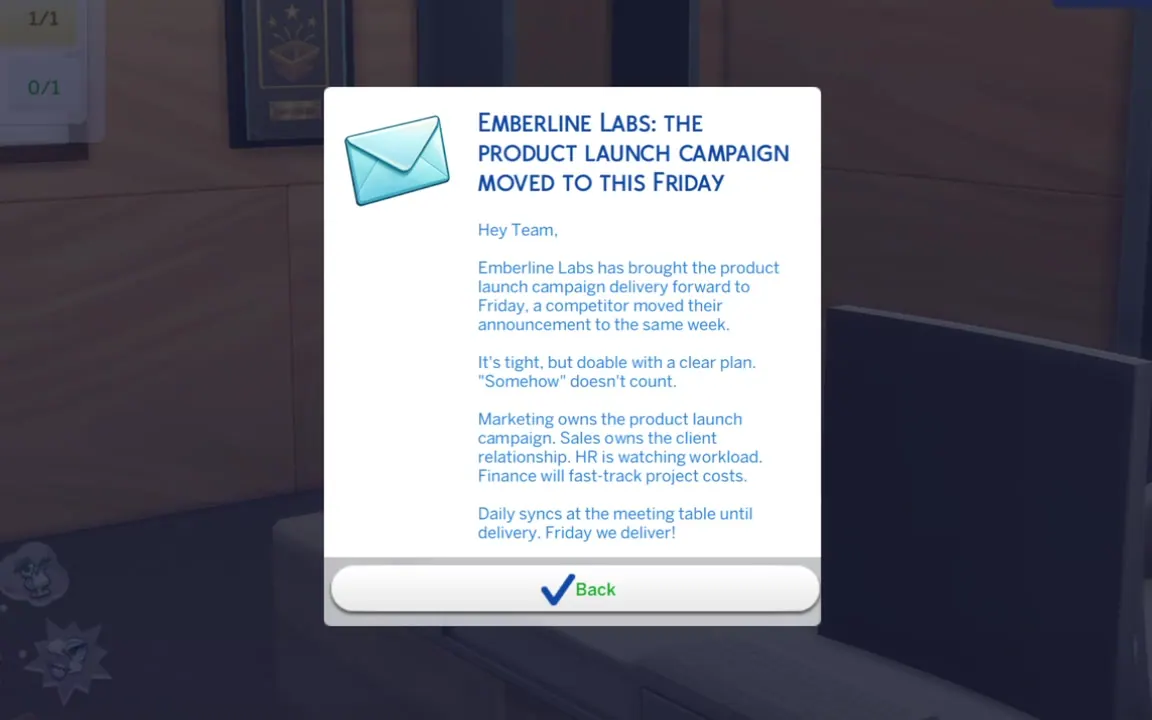
Every week revolves around one client and one deadline. The shape stays the same, but what fills it changes: each week brings a new client, a different job with its own reason for the rush, and different people on the team at the centre of it.
- Monday
- A kickoff message to the whole team.
- Through the week
- Days of work. It rarely goes exactly to plan.
- Friday
- The client comes to the meeting room, and you get a verdict on how it went.
- Joining late
- If the office first opens that week after Monday, the team has already started. A notification, The Week So Far, tells you what they did on the days you missed.
Tag a Meeting Table before Friday: without one, the delivery meeting can’t take place. Friday’s result depends on everyone’s work, yours included, so finish your main goal each day.
Out of the office
Trips off the lot, like the game’s rabbit holes. Your Sim leaves and is out of sight for a while, the game speeds up, and the goal is done when they come back. Cancel the trip and it doesn’t count. They appear in the phone’s Corporate Life menu only when your Sim’s current goal asks for one.
- Lunch with a Prospect
- Sales or CEO
- Coffee Meeting with Lead
- Sales or CEO
- Industry Conference
- Anyone on the team
- Photoshoot Day
- Marketing or CEO
- Coffee with the Board
- CEO
Choose who you are
Play as
Where you stand in the week depends on who you play.
You run the company and make the promises it has to keep.
- Start of the week
A client wants the work by Friday, and you decide how much to promise. A bigger promise earns more and pleases the client; a smaller one protects your team. Every department plans around your call.
- Through the week
You keep the client informed, check in with your leads and bring the teams together whenever they need to get back in step.
- When plans change
Requests rarely stay still. When the client asks for more, you decide whether the company takes it on, and how hard the team pushes to get there.
- Friday
You lead the delivery meeting with the client, and the week’s result lands on your desk.
Every call you make trades money and goodwill against what your people can carry.
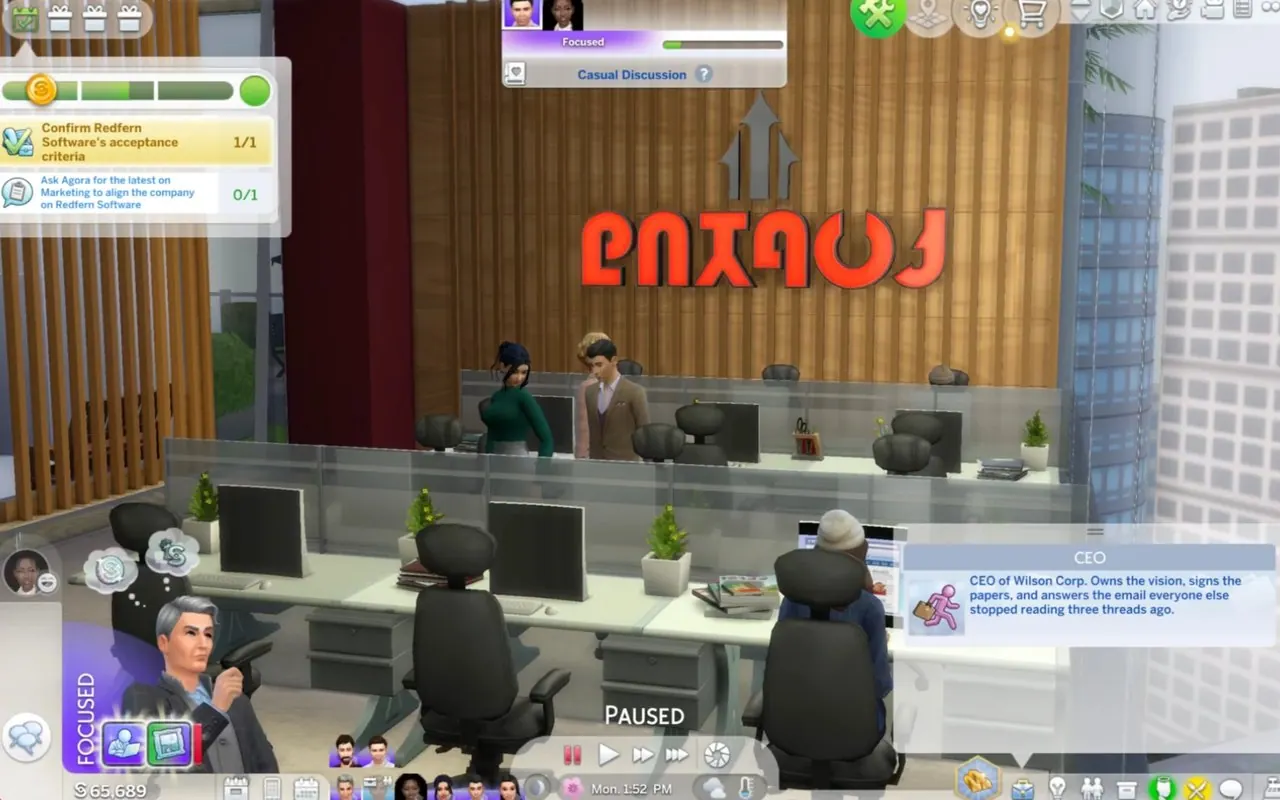
You make the thing the client is paying for.
- Start of the week
You own the deliverable. The week opens at the strategy whiteboard, working the brief through with a colleague.
- Through the week
Working sessions, reviews of the work in progress and calls to settle the details. You count on Sales for a clear brief, Finance to release spending, IT to keep the files safe and Reception to get materials to you.
- When plans change
If the brief shifts, you bring the change into the work and keep everyone’s plan in step with it.
- Friday
You get the work ready and present it to the client.
Being busy doesn’t count. The client judges what you hand over.
You stand between what the client expects and what the team builds.
- Start of the week
You talk to the client to pin down exactly what “done” means, and hand that clear brief to the team.
- Through the week
You keep the client up to date, keep the account notes straight and handle every follow-up.
- When plans change
When the scope moves, you’re the one who confirms it with the client and brings it back to the team.
- Friday
No surprises: the last questions are answered before the meeting, and in the room you answer each one or pass it to the person who owns it.
If you slip, the office spends the week solving last week’s brief.
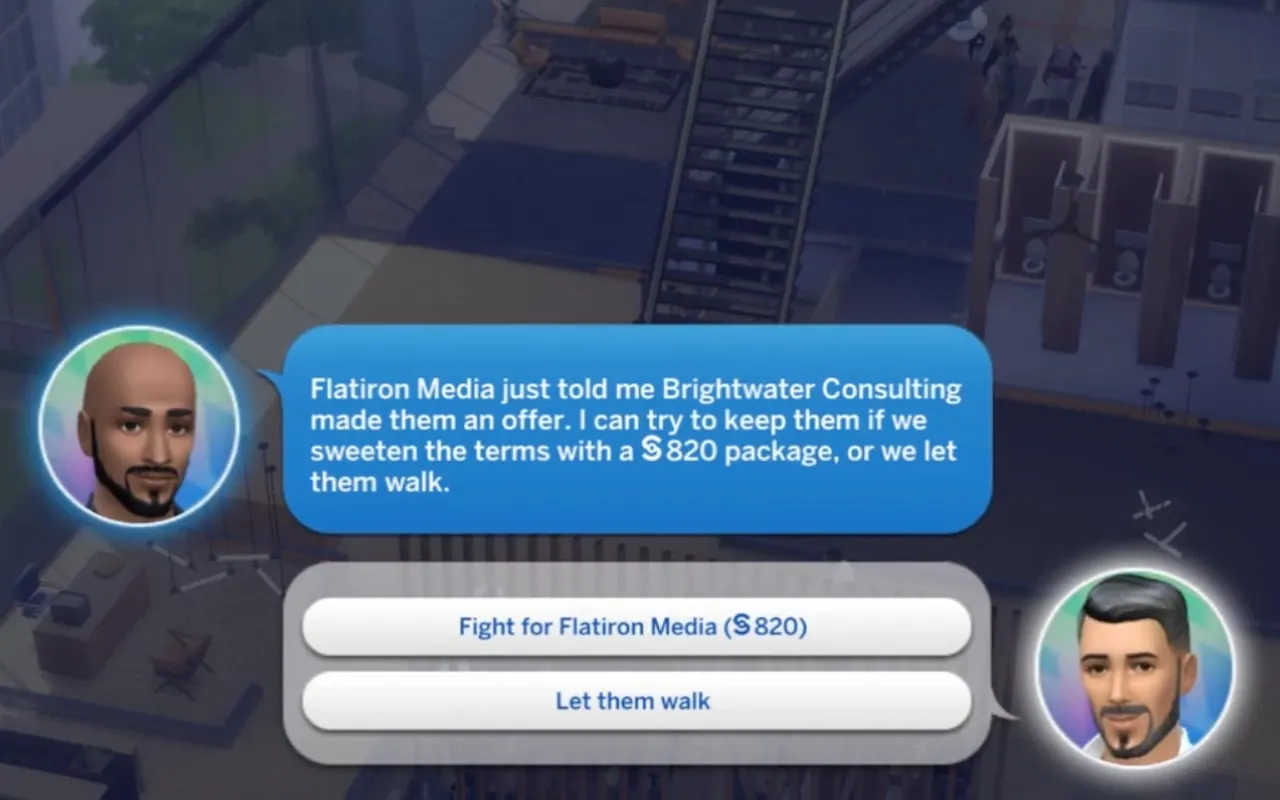
You make sure the people carrying the deadline are still standing on Friday.
- Start of the week
You plan the workload with your colleagues and see where everyone is starting from.
- Through the week
You watch for strain. When someone is struggling, it becomes a question of whether they rest or the plan holds.
- When plans change
When the work shifts, you rebalance who does what, and the CEO turns to you for an honest read on whether the team should push on or rest.
- Friday
You stay out of the client meeting and look after the team around it, before and after.
A plan can work on paper and still break the team. You’re the one who notices.
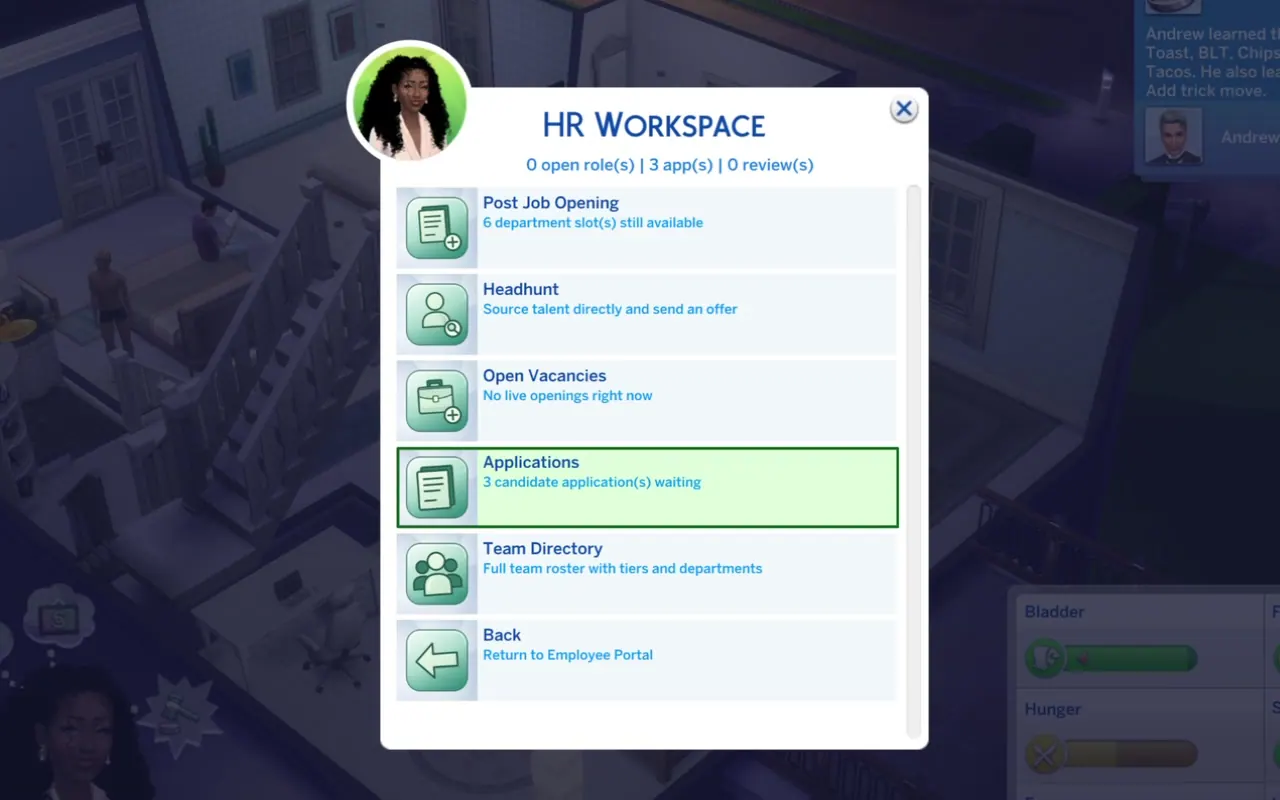
You keep the work funded without letting the promise outgrow the budget.
- Start of the week
Urgent costs arrive with the deadline. You approve what the work needs and make the safe spending limit clear to everyone.
- Through the week
You release budget as the work moves forward and clear the day’s cost requests, so nobody is left waiting on you.
- When plans change
When the scope changes, you put a price on it and bring the figure to the team.
- Friday
You check the fee against what was delivered and look after the commercial side with the client.
In every meeting, people want your read on what the numbers allow.
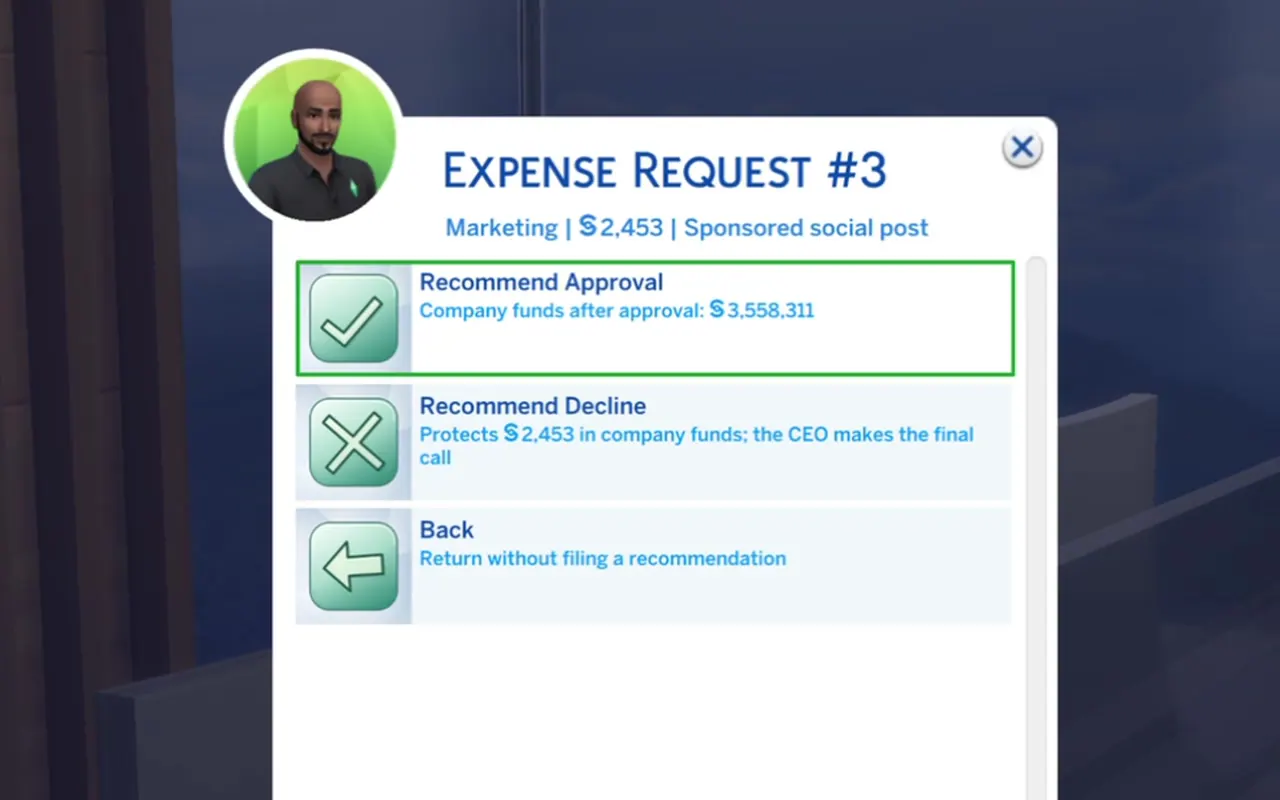
You make sure the work that exists can actually be shown.
- Start of the week
You set up the shared file the whole delivery will live in, and help its owner get going.
- Through the week
You keep the files safe, sort out who touches what and clear the support calls. When a colleague’s computer breaks, you’re the one they phone.
- When plans change
When revised materials come in, you check them and keep the trail in order.
- Friday
After a rehearsal the day before, you put the final work on screen in the client meeting and stay on standby.
A preventable glitch on Friday costs the whole delivery.
You make sure no message, file or visitor goes astray.
- Start of the week
Your day starts at your reception computer, where you put yourself on duty. Calls about the deadline come in through you, and each one goes to the right desk.
- Through the week
Every visitor comes to you first, and you decide where they go: the CEO, Sales or HR, or a seat while they wait. Messages and materials arrive at your desk and go to the colleague who needs them.
- Before the visit
You confirm the client’s visit, add it to the front desk log and let the CEO know when to expect them.
- Friday
You hold the front desk until the client arrives, welcome them and hand them over. The result reaches you afterwards.
One missed handoff can send several departments the wrong way.
When you join a company that is already up and running, the office walks you in one step at a time.
- Morning
A welcome call and a welcome email, then you meet your manager and settle in at your desk.
- Meeting the team
A welcome meeting where your manager explains how the office works, and a chance to introduce yourself to each colleague.
- First work
You start on the team’s project, and a teammate gets in touch about it.
- Before you leave
You check in with your manager. From the next day, you’re part of the team’s week like everyone else.
First impressions count: the people you meet today are the people you’ll work with all week.
The people around you
Life in the office
Rumours spread in the background and change how people get along. You won’t get a list of them: you notice them in whispers, messages and meetings. Stress builds quietly too, and shows in the moodlet panel before it shows anywhere else.
Colleagues
Working side by side changes how people get on. Pairs drift between Friendly Colleague and Hostile, and the strongest become Corporate Allies or Corporate Rivals. Big moments leave a mark, like Fired Up by the Win or Bitter About the Boss. HR steps in when a pair turns hostile, and Directors mentor Juniors.
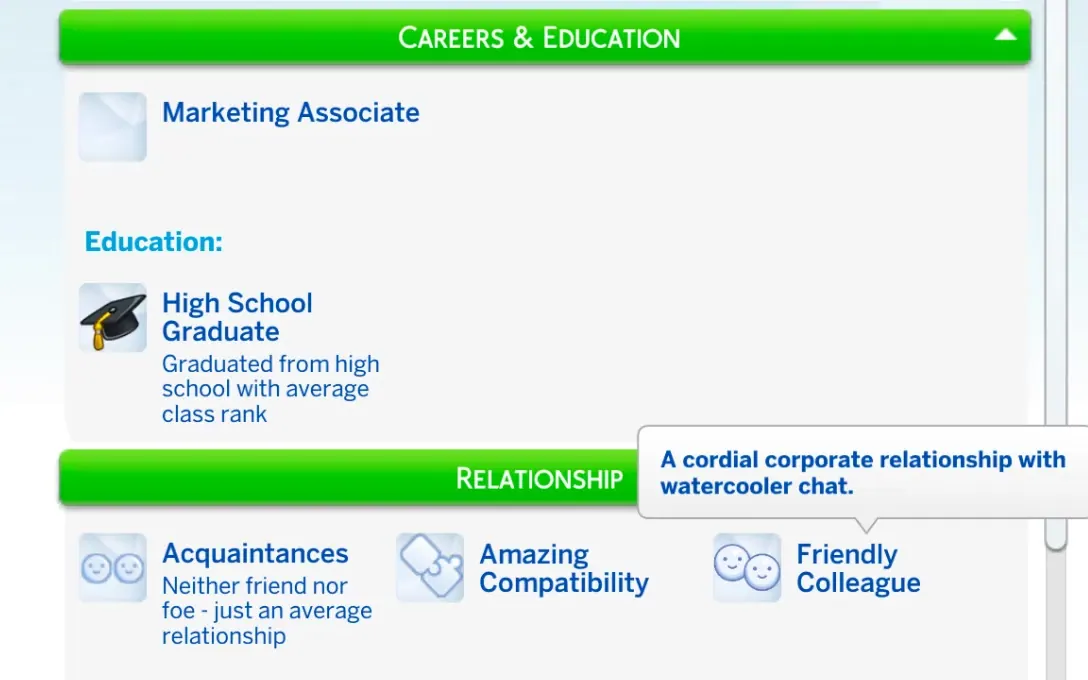
To socialise at work, click a colleague and open Corporate Life:
Only when your Sim knows a rumour the colleague hasn’t heard.
Once, after a real promotion, during the Office Day.
The CEO or a Senior colleague helps someone along.
Exactly what it sounds like.
Ask the CEO for more. No money changes hands, but it can warm things up between you.
Get an update straight from a department.
Meetings
The CEO books meetings at the Meeting Table with Schedule a Meeting: type, attendees, day and time. The week’s goals book some too, led by whoever owns the goal. Whoever leads starts it at the table with Start Meeting. For a quick 1-on-1, the CEO can also use Schedule a Meeting on the phone.
There are four kinds: All-Hands, 1-on-1, Lunch & Learn and Quarterly Check-in. A meeting can go well, normally or turn tense, and it leaves its mark on relationships.
Rather skip the decision cards? Click your Sim and turn off Corporate LifeSettingsMeeting Dialogs. Meetings then run on their own.
For a private talk, Call to My Office on the phone lets the CEO, Directors and HR call someone in when there’s a real reason.
Whiteboard sessions
For a brainstorm, click the Corporate Strategy Whiteboard and choose one colleague to work with. You both go to the board, talk it through and leave a drawing behind.
When a session goes well, it gives that department a small boost and leaves both Sims Inspired. Each session can happen once a day, and teams also brainstorm at their own board without you.
Each department has its own session:
Marketing
Whiteboard Session
Sales
Review the Pipeline
Finance
Close the Budget
HR
Recruitment Plan or Training Plan
IT Support
Systems Map or Incident Recovery
Reception
Visitor Flow
CEO
Company Roadmap
Visitors
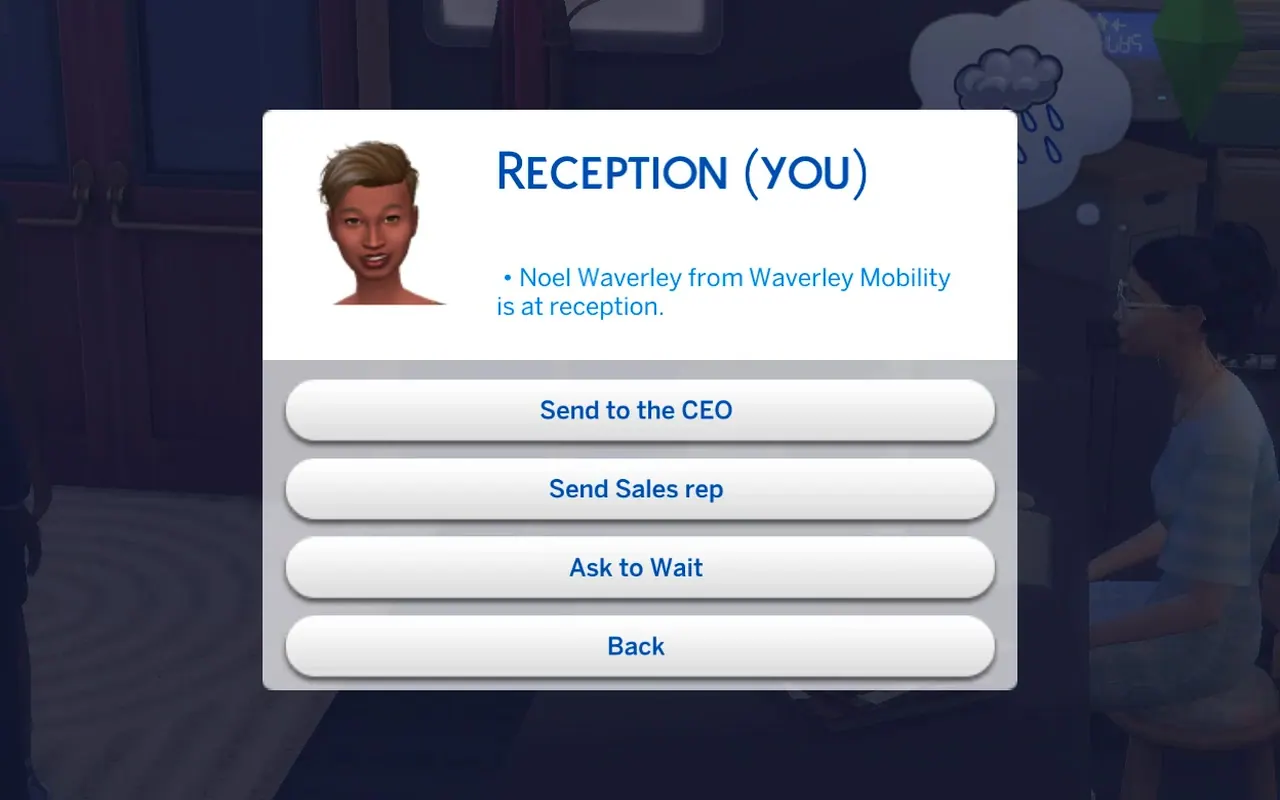
Visitors stop at the Reception Desk and the receptionist greets them. The CEO, or the Personal Assistant if you have one, decides who is seen, who waits and who goes elsewhere. When you play the receptionist, every visit comes to you: send it to the CEO, to Sales or to HR, or ask the visitor to wait.
Potential Client
A possible deal.
Greet them, pitch the project and try to close the deal while they’re here. If the client turns sceptical, the CEO can step in and offer special conditions.
Job Applicant
Someone hoping to join the team.
The CEO, HR or a Director interviews them, and hires them if they fit.
Investor
A high-stakes visit for the CEO.
Meet them in person. How it goes lands straight in the company’s funds.
The Personal Assistant
Hire one in IntranetHRHire Personal Assistant. The assistant handles part of the visitor flow so the CEO isn’t called for everything. Once hired, the same row becomes Manage Personal Assistant. Open it and choose Visitor Policy to decide what happens to each kind of visitor:
The assistant tells you someone is here.
The visitor waits without interrupting you, until their patience runs out.
The assistant ends the visit at the desk.
The visitor goes straight to HR. With no HR on the lot, you decide.
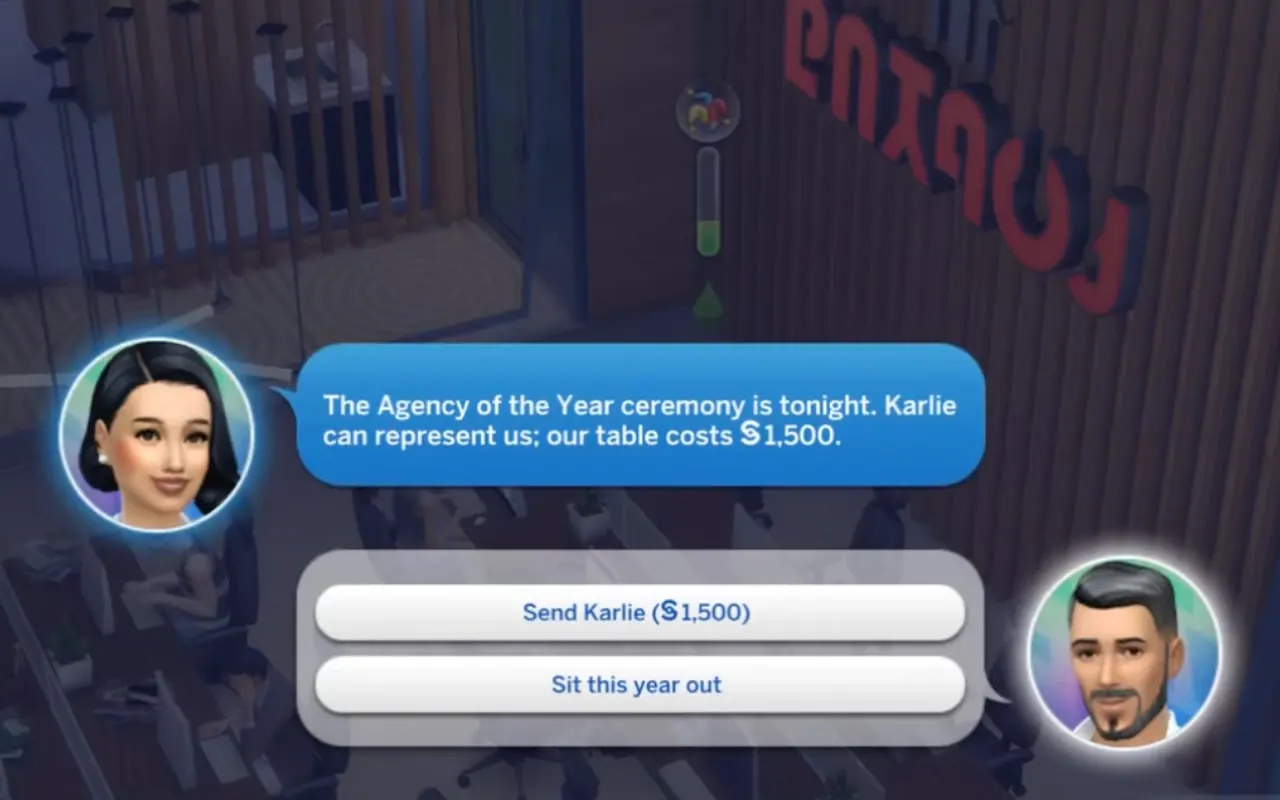
While on shift, the assistant also brings the CEO the company’s decisions as they come up, each with its cost and the choices on offer.
Careers, conduct and time off
The team
Levels and promotions
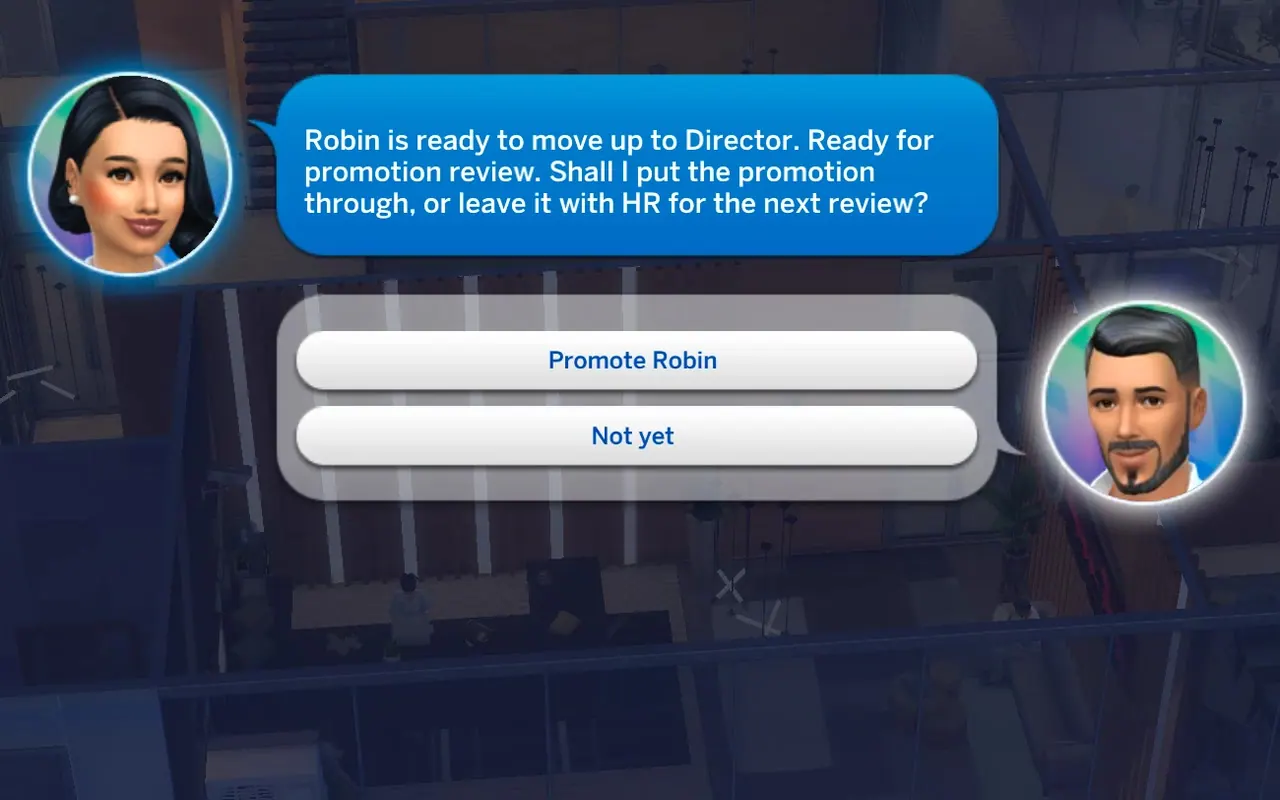
Junior, Associate, Senior, Director: each level brings a new title and better pay. A promotion takes time at the company, the department’s main skill, steady work, good morale and a clean record.
When someone is ready, the CEO is asked: Promote or Not yet. The CEO can also choose Promote on the colleague, or Approve Promotion in the Team Directory.
Directors
Directors lead their department. They can open the office, interview applicants, use Call to My Office, and work from a private office behind a Director Office Door.
Managing the team
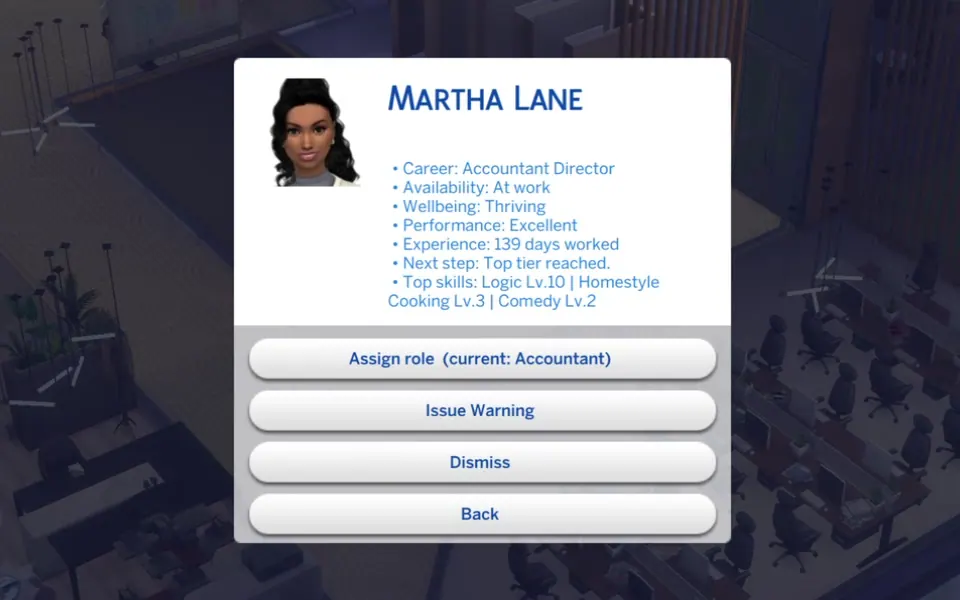
In IntranetHRTeam Directory, each person’s card lets the CEO assign a role, approve a promotion, appoint a Director, issue a warning or dismiss them. Dismissing costs severance and can’t be undone. HR hires from the HR Workspace in the Employee Portal.
Conduct
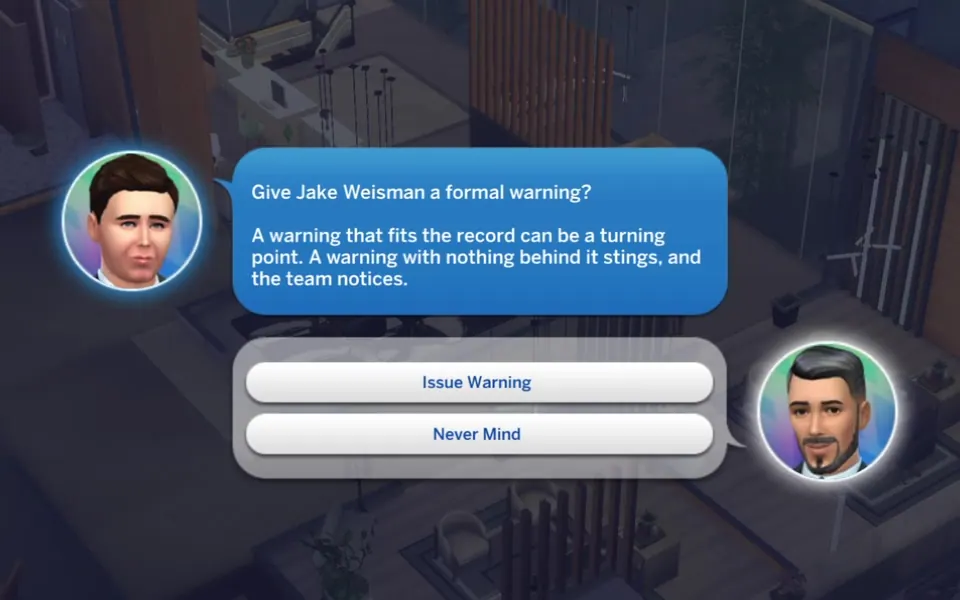
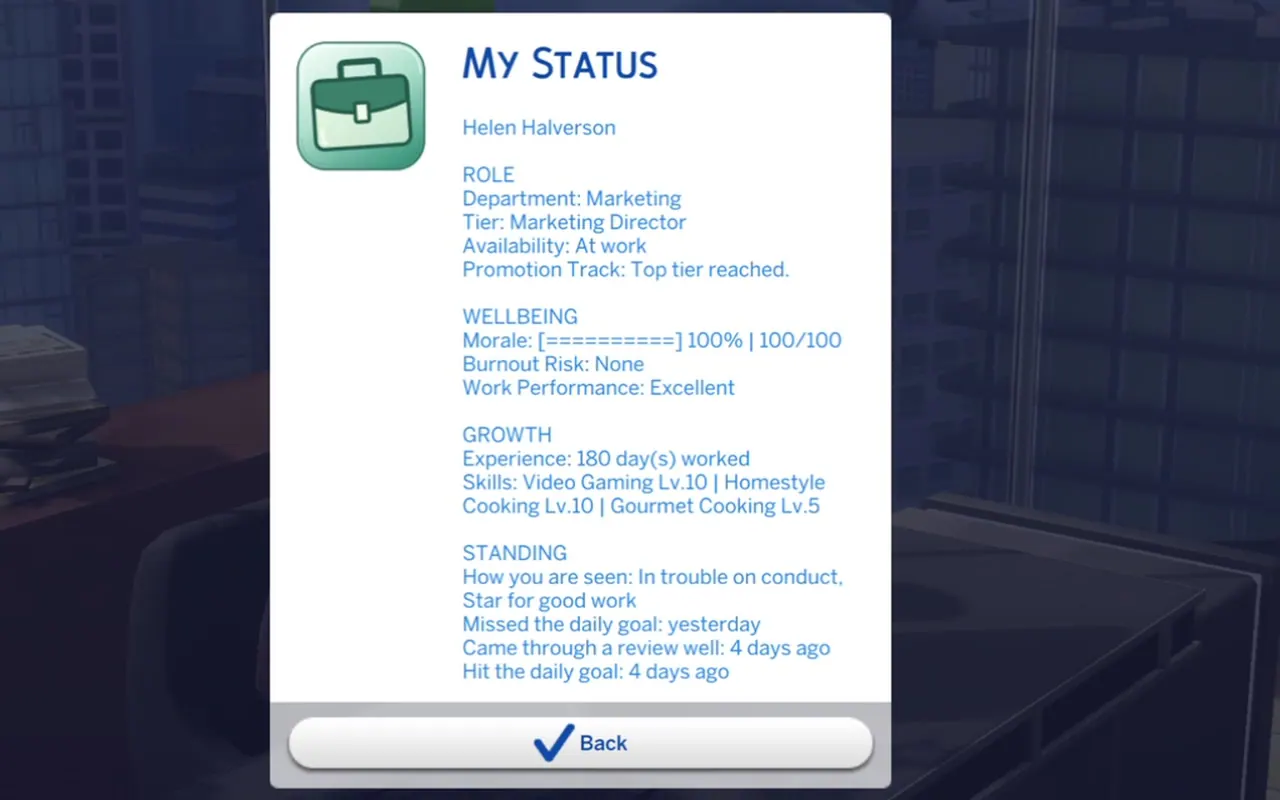
Romance, fights, the wrong clothes, lateness and absences go on a Sim’s record and start talk. A growing record brings warnings and holds back promotions. A fair warning helps, an unfair one breeds resentment. Employees check where they stand in My Status.
Time off
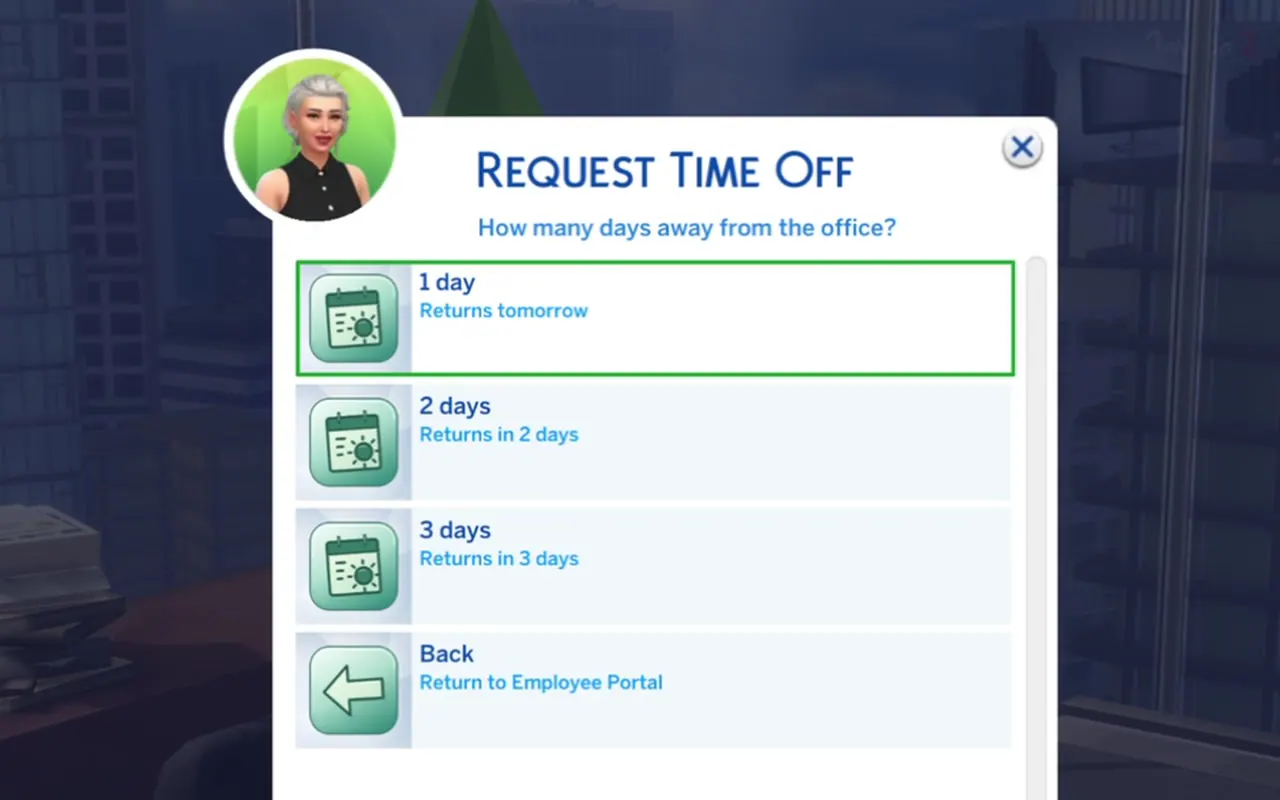
Employees ask for days off in Employee PortalRequest Time Off, approved straight away. With Seasons, a holiday asks whether to open the office. The client’s deadline doesn’t move.
Leaving
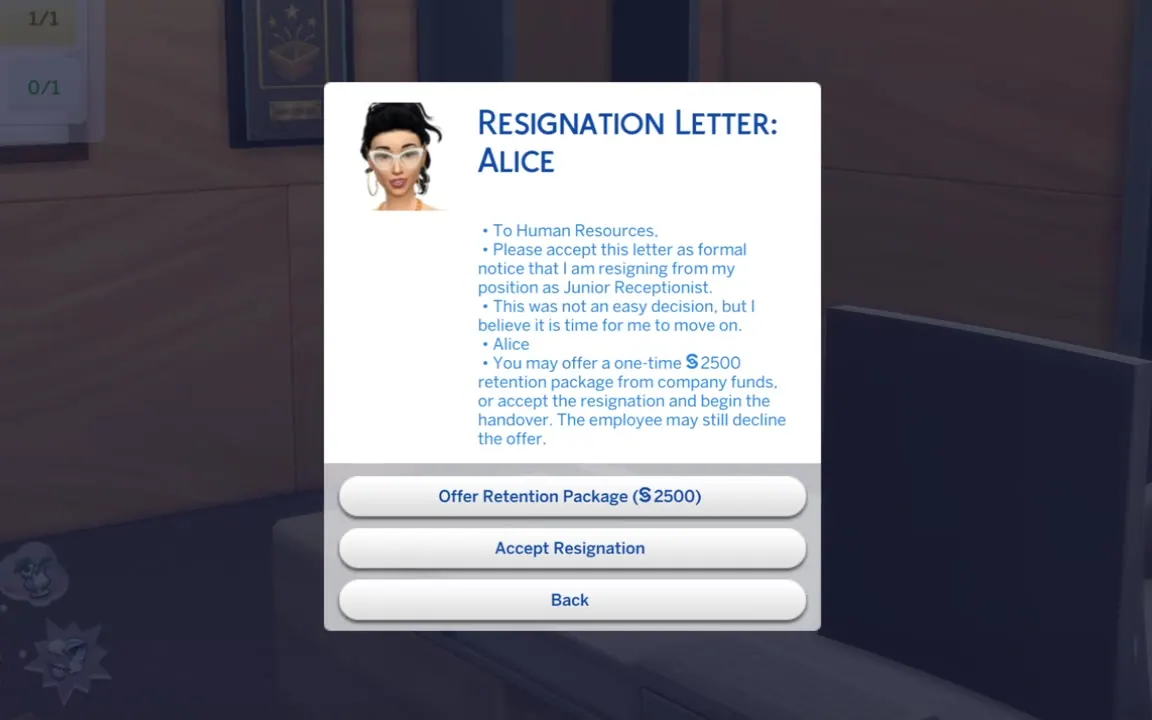
Resign from Company offers a paid week of notice that ends with a handover, or leaving at once without pay. Unhappy colleagues may send a Resignation Letter: the CEO or HR can offer a retention package or accept it.
The company’s funds
Money and ownership
The company has its own funds, separate from your household. Payroll and rent are paid at closing. The CEO is paid from the company each day, and each employee’s salary goes into their own household.
Keeping it running
- Owner Capital
- Put your own money into the company, or take a dividend out of it.
- Loans
- Borrow or repay. What’s on offer grows with the company.
- Pending Expenses
- Approve or decline what the team asks to spend.
If the funds can’t cover a day, payroll is late and nobody gets paid. Let it go on and morale drops. Owner Capital or a closed deal fixes it.
Selling the company
- IntranetCompanySell the Company… shows a valuation based on its money, brand, team and loans.
- List it. Offers arrive by phone over the next days, wherever your Sim is.
- Accept, decline or decide later. You can also take the company off the market.
- An accepted offer closes at the end of the work week, or right away if you accept on a weekend: the money goes to your household, and the team and office pass to the new owner.
Reference
Office setup
The CEO and every employee of the company can set up the office. Everything is done by clicking the object itself.
Surfaces
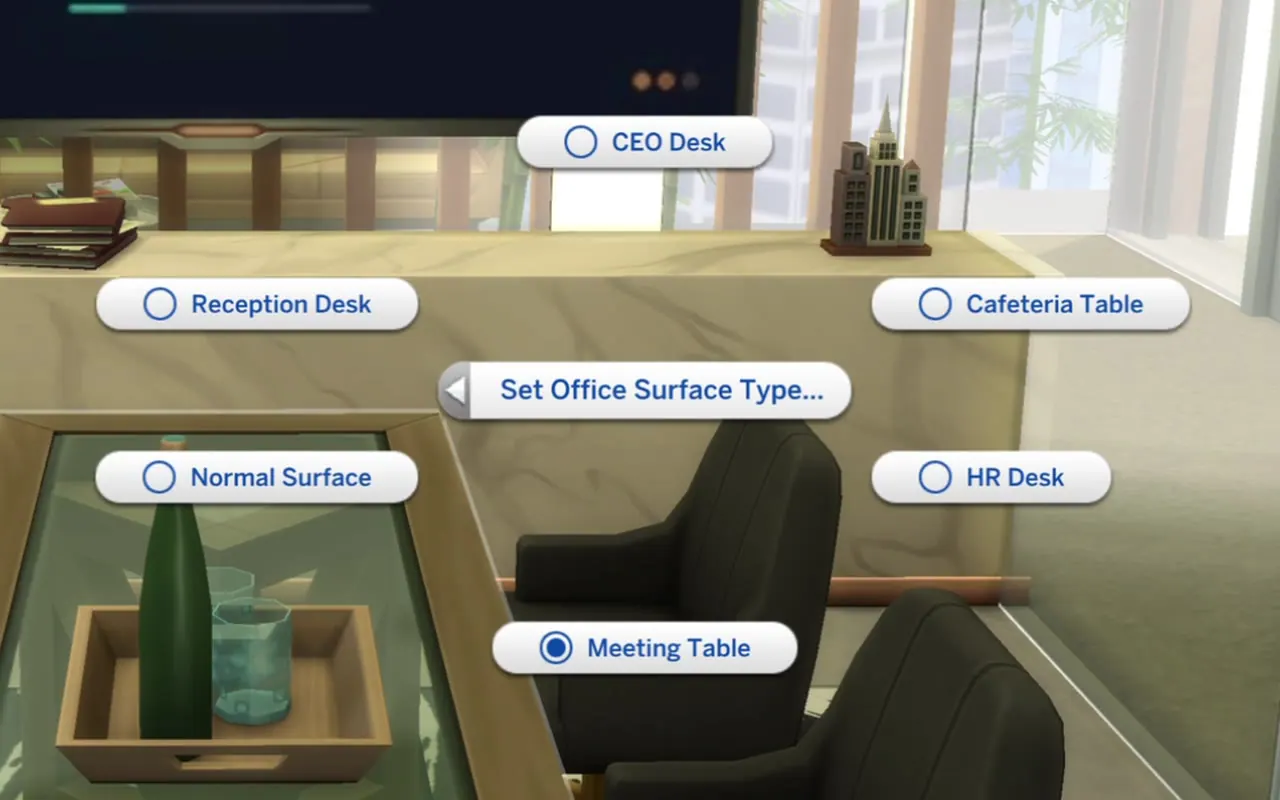
Click a table or desk › Set Office Surface Type…, then pick the type.
- Meeting Table
- Group meetings. Needs chairs close by.
- CEO Desk
- 1-on-1s and the CEO’s private conversations.
- HR Desk
- Interviews and check-ins.
- Reception Desk
- Where visitors stop. Put a chair or sofa nearby so they can wait.
- Cafeteria Table
- Where staff sit to eat once they have their food, instead of at their desks.
Doors
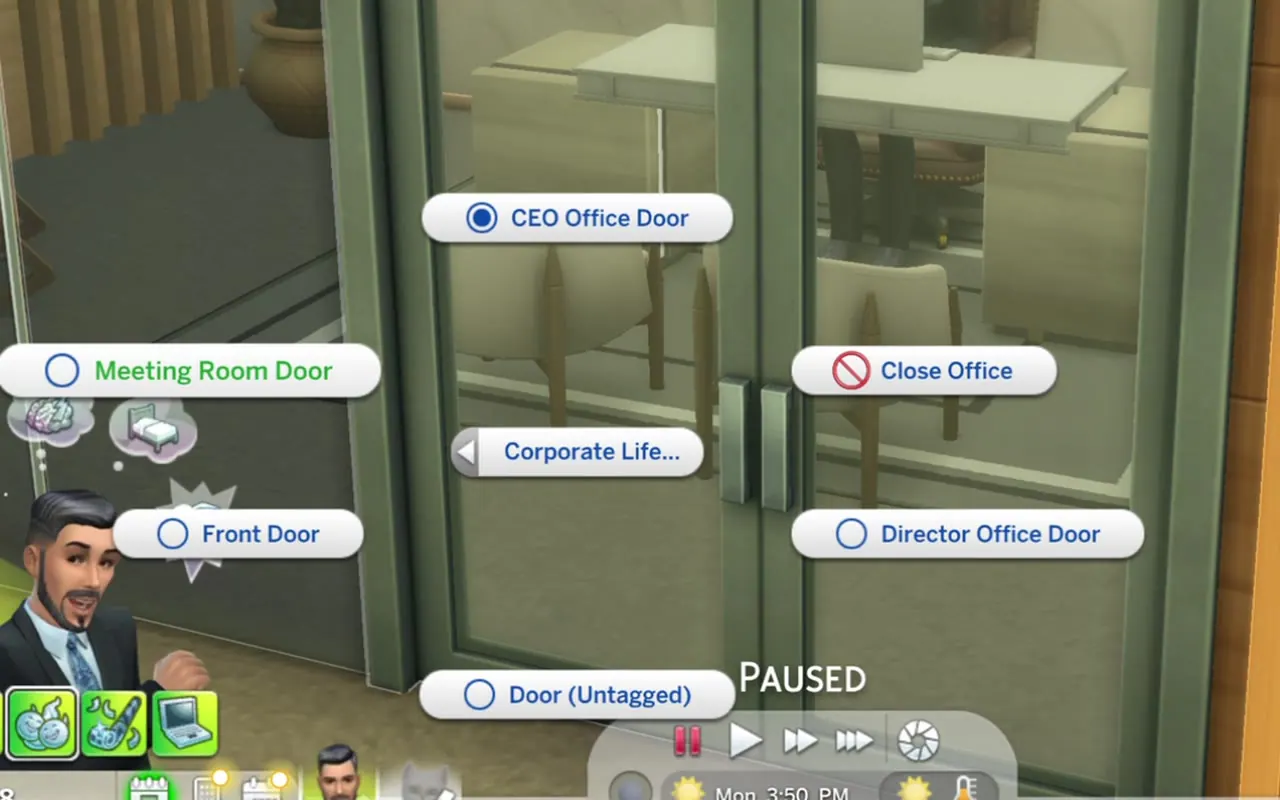
Click a door › Corporate LifeOffice Door Type
- Meeting Room Door
- Closes the room to anyone not in the meeting.
- CEO Office Door
- Keeps the CEO’s office private.
- Director Office Door
- Reserves an office for the CEO and Directors.
- Front Door
- Controls the main entrance during office hours. Only staff and expected visitors get in, not family members who don’t work there.
- Door (Untagged)
- Removes the current tag.
Doors have a front. It must face the corridor or the outside of the room. If Sims get stuck inside, or walk in where they shouldn’t, set the door to Door (Untagged), rotate it in Build Mode and tag it again.
Workstations
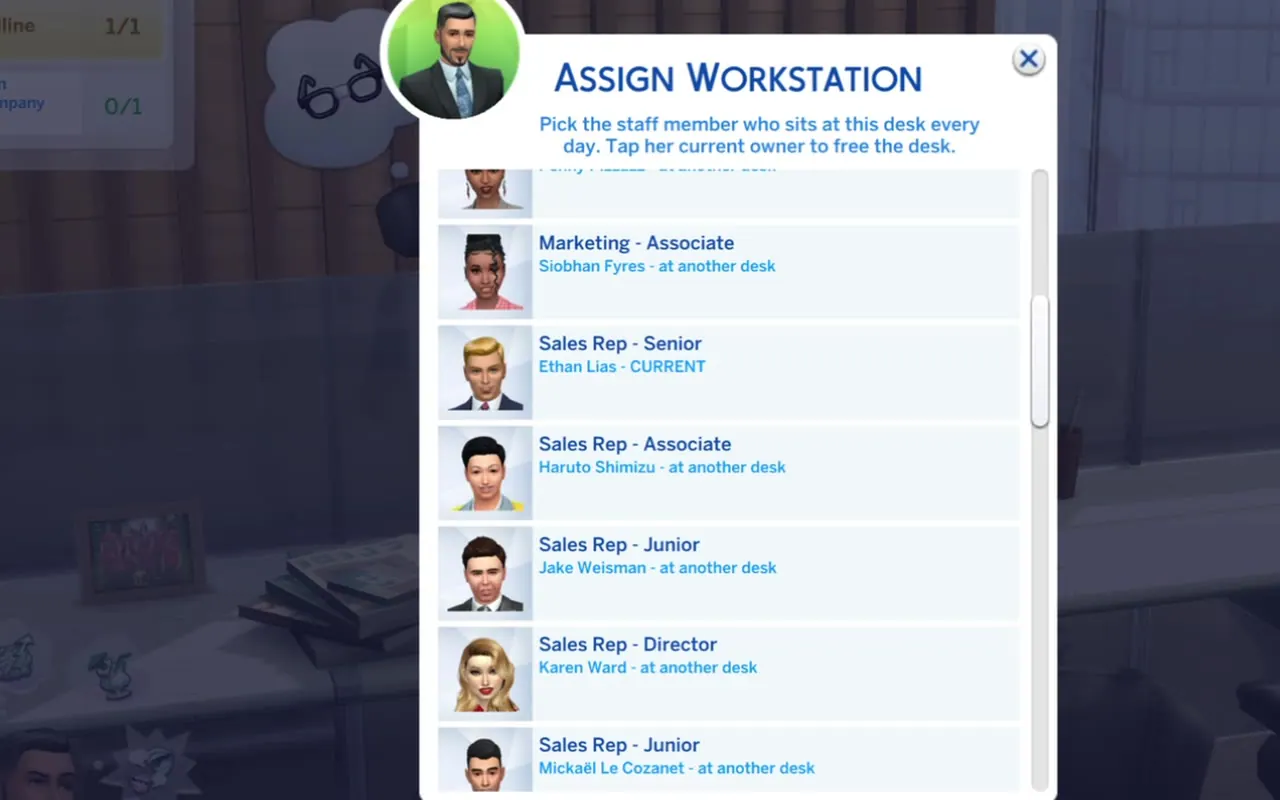
Assign each computer to a person, so you always know which desk is theirs. An assigned computer works only for its owner, the CEO included. If the office opens with people still missing one, the Workstations missing notice offers Auto-Assign. It keeps existing assignments and respects private offices.
Objects
Made for the office. Find them in Buy Mode.

Corporate Strategy Whiteboard
Every department has its own work at the board. With several boards, each one belongs to the department whose desks are closest.
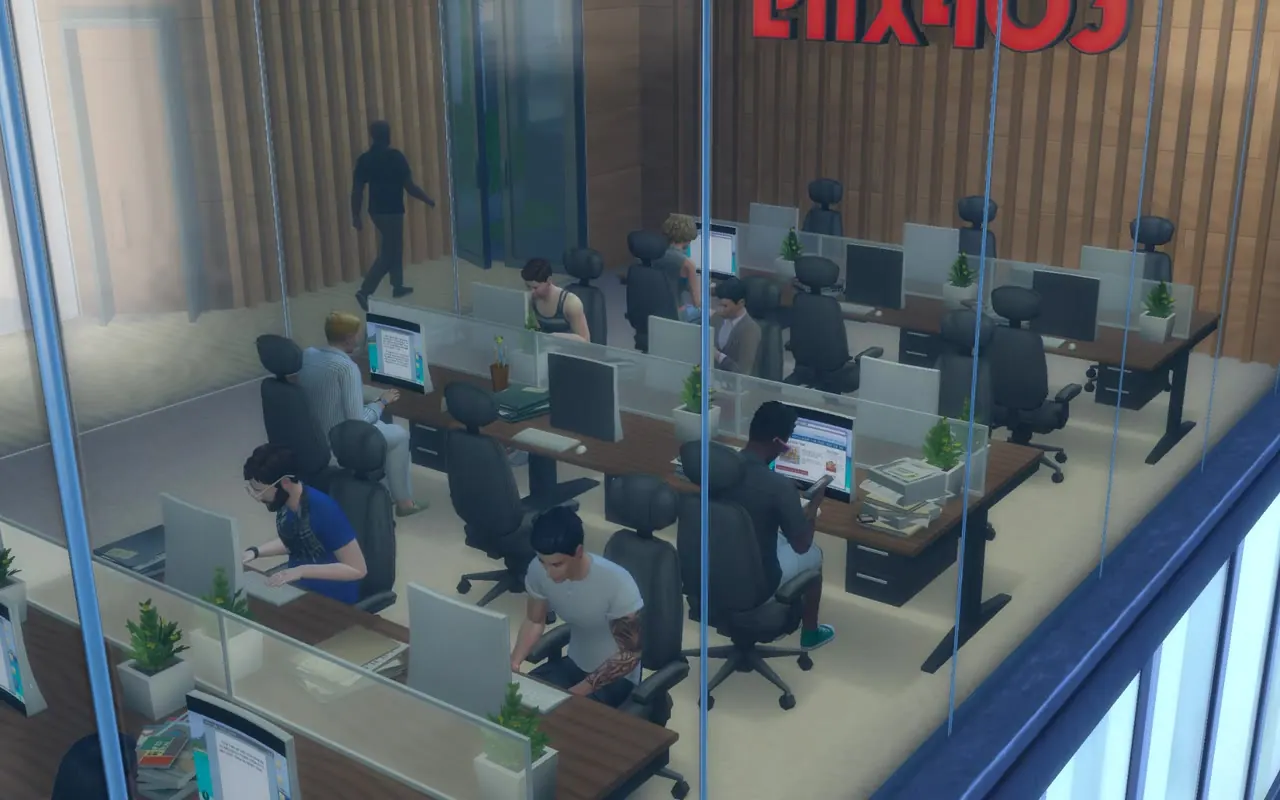
Modular desks
Three styles of desk for building the office floor.
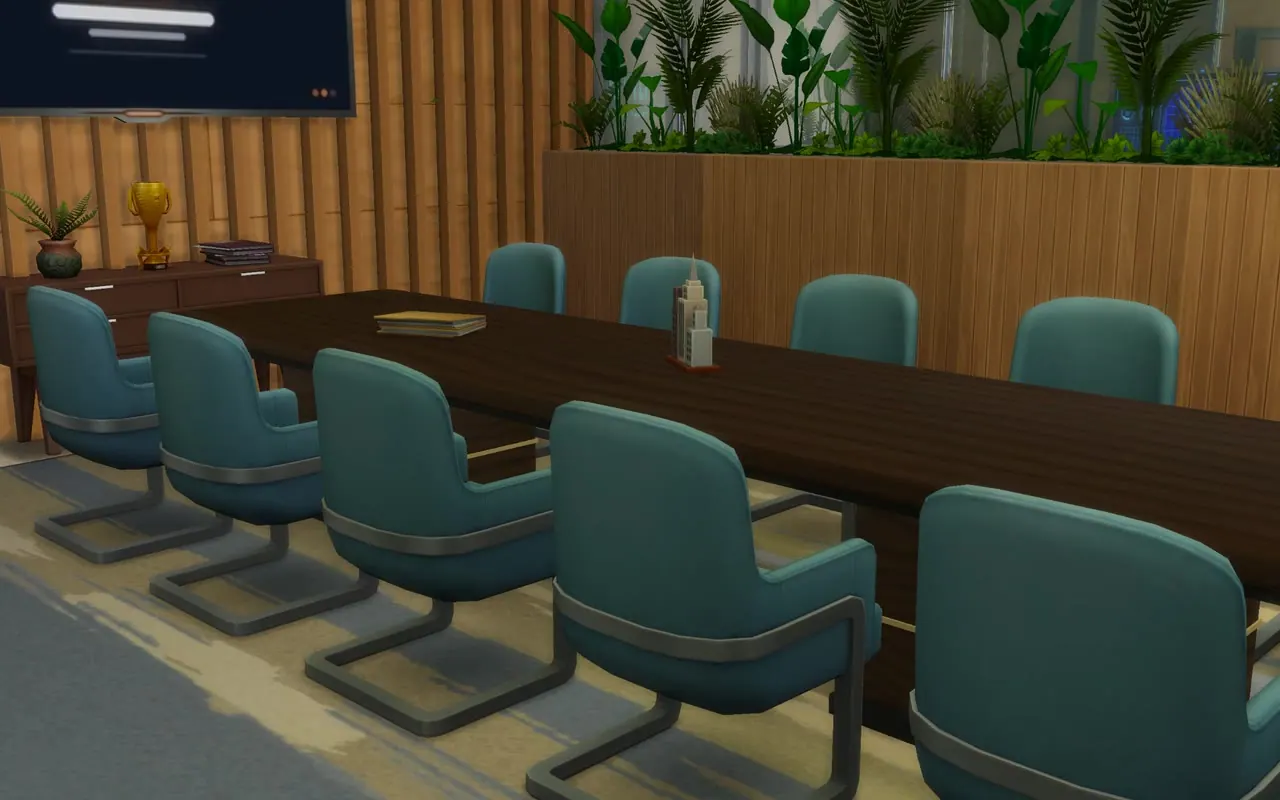
Large meeting tables
Bigger, more imposing tables that seat more people than the game’s own. Each comes in seven colours and finishes.
Also worth placing
- A TV
- A working TV in the same room as the Meeting Table adds presentations to meetings. Recommended, not required.
- A cafeteria counter
- Optional, with a pack that has a food counter, coffee bar, coffee cart or market stall. While the office is open, the CEO clicks it and chooses Hire Corporate Cafeteria Staff. Someone serves at it every office day, paid from the company’s funds, until you choose Dismiss Corporate Cafeteria Staff. Tag a table as a Cafeteria Table so staff eat there.
Before you play
Install and update
Requirements
- Game
- The Sims 4 base game, up to date. No packs needed. A counter from a pack adds the optional cafeteria.
- Other mods
- None required
- Mod type
- Script mod (.ts4script + .package)
- Language
- English
- Tested on
- Game version 1.129.39
Other business mods may conflict if they change the same parts of the game.
Installation
- Unzip the download and put both files together in your Mods folder, directly or in one subfolder such as
Mods/Chatelain_CorporateLife/. The game doesn’t read script mods any deeper. - Turn on Custom Content and Mods and Script Mods Allowed in Game Options › Other.
- Restart the game. Corporate Life now appears when you click a computer.
Updating
- Quit The Sims 4 and the EA App completely.
- Replace both files with the new ones.
- Coming from 1.0.0? Also delete
Chatelain_CorporateLife_v1.0.0.ts4script. Since 1.0.1 the script file has no version in its name, so this is needed only once. - Start the game again. The script is only read at launch, so copying over a running game keeps the old version.
After a game update, check this page for a new version before opening an important save.
Good to know
- All the text in the game is in English.
- One company per save is the tested way to play.
- The company lives in the save, not in the household. Move the household to another save and the Sims keep their job titles, but not the company, the office or its money.
- Next to the mod’s files you’ll find a log and backups of your companies. They’re meant to be there.
If something goes wrong
- Staff didn’t show up after loading? Close and reopen the office from IntranetOperations.
- A Sim stuck in a room is almost always a door facing the wrong way. See Office setup.
- A goal points to something the lot doesn’t have? The Setup Checklist shows what’s missing.
- To ask for help, send the folder that holds the mod’s files, with its log and backups, and say what you did just before.
Corporate Life public release on 4 December


// Public release
Dec 4
Corporate Life opens to every Chatelain member on 4 December, the free membership included. Patrons on the Early Birds tier can play it now.
- NowEarly Birds tier on Patreon
Download it here and start your company today.
- 4 DecemberAll Chatelain members
Free, with the free membership on Patreon.
You’ll sign in with Patreon. If you’re on the Early Birds tier, the download starts right away.